Last Updated: 09/21/2023
Worker Export Report
To run: Reports > Worker Export > Run Report
The Worker Export report looks at all student data, including name, residence and mailing addresses, phone number, email address, party, and home precinct.
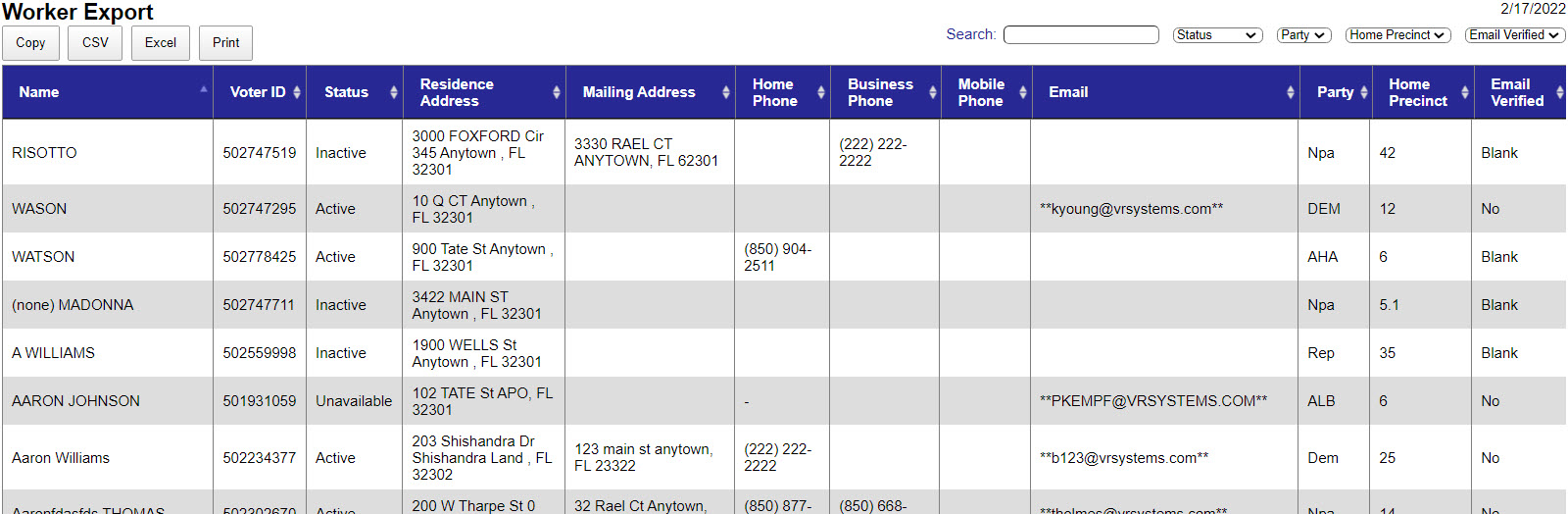
 View the Worker Export Report
- Go to the Reports tab.
- In the Worker Export row, click Run Report.
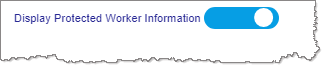
- Select whether to include or exclude information for protected workers.
- From the available filters, select to limit the number of workers in the report to specific criteria:
- Your election from the Election list.
- The Worker Status or All Statuses.
- Election Day or Early Voting from the Position Type list.
- Optionally, select a location from the Location list.
- Optionally, select the shift status from the Shift Status list.
- Optionally, select Blank (workers with no email on record), No (workers with unverified email addresses), or Yes (workers with verified email addresses) from the Email Verified list. To learn about how email addresses are verified, see Verify Worker Email Addresses.
- Available shifts display in the table. To save the grid contents to an external file, click CSV or Excel. Alternatively, you can click Print.
Note:
- The Voter ID column can show one of two types:
- ID begins with a number—The election worker's voter registration ID.
- ID begins with EW—A resident outside your county or a person not registered to vote in the county who was added in Election Worker Portal as an election worker.
- The Email column includes asterisks around email addresses that are not verified.
**MyEmail@domain.com**


